Sunday, 29 October 2017
Wednesday, 29 March 2017
Use of sumifs
Sumifs This foumula is a conditional formula. Like when we have some condition and we have to find out the sum with some condition. So then we will use this function.
Through the formula of sumifs we can find the sum with the
condition.
For Example we have 5 Sales men and we want to find that how much
product sale by each sales men. So we can easliy find.
Syntex__ =sumifs(sum range,criteria_range1, criteria1,
creiteria_range2,cretria2)
Sum_range = Select the sum
range
Creteria_range1 = is select the range First column
Criteria 1 = Slect the
name which you find
Cretria_range2 = Select the range Second column
Cretria2 =Select
the product you want to find
When you will change the salesmen name (where you apply the
formula) it will show you the total sale of that particular salesmen.
Monday, 13 March 2017
How to use vlook up
VLOOKUP foumula, as the formula name show its use. This formula is use when we have data in bulk and we have to find one person detail.
SYNTEX: =VLOOKUP(lookup_value,table_array,col_index_num,[range_lookup])
Lookup_value = Select the cell which you find
Table_array = Select the whole table
Col_index_num = Column number is the table have the numer of column
range_lookup = 0 (zero is true value)
Here is an Example of vloolup
Here is the link
https://docs.google.com/spreadsheets/d/1GmZYiQ6-J_qKjteDQIJcaNu_vLOK4b23nWt_zitpc5w/edit#gid=0`
SYNTEX: =VLOOKUP(lookup_value,table_array,col_index_num,[range_lookup])
Lookup_value = Select the cell which you find
Table_array = Select the whole table
Col_index_num = Column number is the table have the numer of column
range_lookup = 0 (zero is true value)
Here is an Example of vloolup
Here is the link
https://docs.google.com/spreadsheets/d/1GmZYiQ6-J_qKjteDQIJcaNu_vLOK4b23nWt_zitpc5w/edit#gid=0`
Tuesday, 7 March 2017
Forcast Formula
Forcast formula is used to predict anything in excel.
For example- We sale somthing and we have the detail of sale for the month of jan, feb, March, April and now we want to know that what will be the sale in December month. So then we use forcast formula. You Can't totally Dependent that result which is given by the formula but It will give you the approx value.
So here is an Example.
SYNTEX- (X,Known_y's, known x_'s)
X =is month you want to know the sale like october
known_y's= known result (the Sale )
known_x's= known Result( month)
For example- We sale somthing and we have the detail of sale for the month of jan, feb, March, April and now we want to know that what will be the sale in December month. So then we use forcast formula. You Can't totally Dependent that result which is given by the formula but It will give you the approx value.
So here is an Example.
SYNTEX- (X,Known_y's, known x_'s)
X =is month you want to know the sale like october
known_y's= known result (the Sale )
known_x's= known Result( month)
Saturday, 4 March 2017
PMT FORMULA
Basically PMT formula is use to calucalt the amount
of loan.We will try to uderstand the formula throgh the Example.
Suppose we have taken loan form the bank and we have to find out the EMI Amount.
Syntex
=pmt(rate,nper,pv[fv],[type])
rate = rate is The percent which is fix by the bank on the
loan
nper = nper is the time which is in month like 5 years(60 months)
pv = pv is present value (we can say the loan which
is taken by us)
The value will show in minus because we are paying the money.
Tuesday, 21 February 2017
Home Function (shortcut Keys)
shortcut keys are the most importnat in excel by using the shortcut keys we can make speed in excel and To work in excel will be very easy to use so these are some shortcut keys.
1. Auto Sum Alt + (Apply this formula in that cell where you want to sum)
2. one to another page Ctrl page up ( Press these two key ctrl and page up for the next page and
Ctrl page down for previous page) for excel sheet
3. one sheet to another Atl tab (Press these two key it will help to go in another sheet)
4. select the whole Row Shift and space (Press the Shift and Space key Together)
6. Find Ctrl F
7. close the whole sheet Alt F4
8. Minimize the Excel sheet Window M(Press the Window key and then M)
9. Go at the top Ctrl and upper arrow
10. Go at the bottom Ctrl and down arrow
11. Apply Bordre Alt H B A(press these key one after one)
12. Remove Border Alt H B N
13. Merge cell Alt H M M
14. Unmerge cell Alt H M U
15. Increse font Size Alt H F S( Then set the Size of Font)
16. Wrap Text Alt H W( It is use when We want a name in one cell) eg - Aditya Singh negi we want this name in one cell then We will use this key
17. Insert Cell Alt H I I(Then Enter)
18. Preview file Ctrl F2
19. Minimize Excelsheet Ctrl F9
20.Fill Color in Cell Alt HH (Then Select the color)
21. Duplicate ctrl D
22. Freez Row Alt then W then F then R (for the Row)
23. Freez Column Alt then W then F then C (For the column)
24. Freez Row and column Alt then W Then F then F (to Freez the row and column)
Monday, 20 February 2017
Frequency
Frequency formula
We use this formula when we have to sapparate the data in Interval. Using this formula we can saprate the data into the part.
for Example we hav a data of the student weight and we have to find that how many student have weight is 0-15 and how many have 15-50 and how many have 50-100
We use this formula when we have to sapparate the data in Interval. Using this formula we can saprate the data into the part.
for Example we hav a data of the student weight and we have to find that how many student have weight is 0-15 and how many have 15-50 and how many have 50-100
| =frequency(select data , then select interval ) Data_ array = Select the range of weight(Kg)
bins_ array = Weight interval column
in that cell we will apply the formula of frequency. (=frequency(select data , then select interval ) then press the three key together (ctrl shift enter) here is the link https://drive.google.com/drive/my-drive | |||||||
use of Sumif
USE OF SUMIF
This is the Fantastic formula of excel and this formula is use for when we have the data in bulk and we have to find out the sum of the same product
For example- We have a data and we have to find that how much Quantity sold of one product.
So Here is the Example.
Range required. The range of cells that you want evaluated by criteria. Cells in each range must be numbers or names, arrays, or references that contain numbers. For Example The Column of Product as Shown in Example.
Criteria required. Criteria is that select the product that you want to sum.
As shown in the Example select the Mango
sum range: The actual cells to add, if you want to add cells other than those specified in the range argument. For Example the column of Quantity.
If you want to find that all prroct how much Quantity has been Sold so just Copy the
Formula in another Cell you will get the how much Quantity of another produch Sold.
Subscribe to:
Posts (Atom)
calculation of professional tax
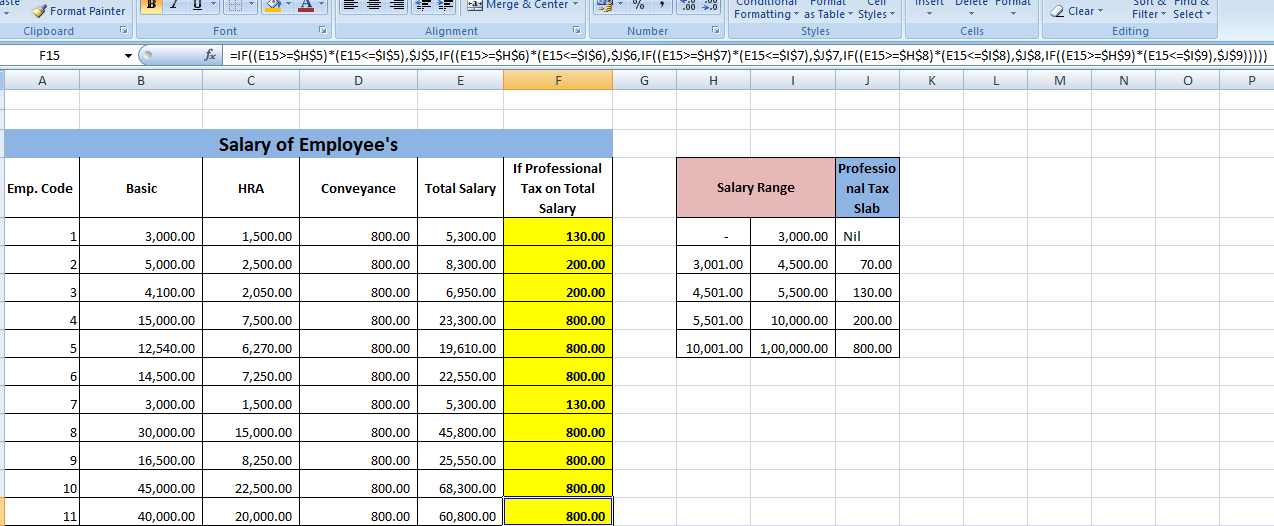
Normally professional tax in not applicable all over the country but there are some state where the government take professional tax Kar...
-
BANK RECONCILIATION STATEMENT Bank Reconciliation statement if we say in simple word this is the one...
-
USE OF SUMIF This is the Fantastic formula of excel and this formula is use for when we have the data in bulk and we have to find out...