Tuesday, 19 December 2017

shortcut keys

                                               SHORTCUT  KEYS OF TALLY                                 


Shortcut Keys are helpfull to work fast. These keys are always helpfull. it save the time and boost the speed  of work.

1.         F1                           To select a Company

2.         Alt+ F1                  To select the inventory
                                       ( To view the detailed of entries)

3.         Ctrl+F1                  To see payroll Voucher

4.         F2                           To change the current date

5.         F3                           To select company

6.         F4                           To select the contra Voucher
                                    (For Cash to Bank or Bank to cash entry)
7.         F5                           To select the payment voucher

8.         F6                           To Select the receipt voucher

9.         F7                           To select the journal voucher     

10.      F8                           To select the sales voucher

11.      Ctrl+F8                  To Select the credit note

12.      F9                           To select the purchase voucher

13.      Ctrl+F9                  To select the debit note

14.      F10                         To select the reversing Journal Voucher

15.      Ctrl + F10             To select the memorandum  voucher

16.      F11                         To select the function and features screen

17.      F12                         To select the Configure Screen

Convert negative value in postive

                                  Convert Negative Value in Positive


Replace all Negative value in positive. Here is the table


1. Select the whole negative row

2. Press Ctrl+F

3. Click on Replace All.

Click on Ok 


Now all the negative values are changed into Positive.

Monday, 18 December 2017

Excel introduction


Excel was Developed by Microsoft and first released on September 30, 1985, Excel is capable of creating and editing spreadsheets that are saved with a .xls or .xlsx file extension. General uses of Excel include cell-based calculation, pivot tables, and various graphing tools. For instance, with an Excel spreadsheet, you could create a monthly budget, track business expenses, or sort and organize large amounts of data.
                Microsoft Excel is a spreadsheet program that is used to record and analyse numerical data.We all deal with numbers in one way or the other. We all have daily expenses which we pay for from the monthly income that we earn. For one to spend wisely, they will need to know their income vs. expenditure. Microsoft Excel comes in handy when we want to record, analyze and store such numeric data.
   How to start excel                       
  • Click on start menu
  • Point to all programs
  • Point to Microsoft Excel
  • Click on Microsoft Excel
Alternatively, you can also open it from the start menu if it has been added there. You can also open it from the desktop shortcut if you have created one.

Randbetween

                                       Randbetween Function


To Get a random value in a table we use this Formula(Randbetween).

Syntex: 
=Randbetween(Bottom,Top)

  Bottom= Here Put The Botton Value
  Top      = Here put the Top Value

Example- we want a random table between 500 & 1000. Here is bottom value is 500 and                         top value 1000.


Thursday, 30 November 2017

Bank Reconciliaton Format


                                    BANK RECONCILIATION STATEMENT

Bank Reconciliation statement if we say in simple word this is the one way to know that how much balance is in our Company  Account have in a particular branch or Account. In this Statement we take only those cheque which is not cleared in Bank.It Can be current month cheque last amount(In the reconciliation we take last three months not cleared cheque)

Here is the format of Bank Reconciliation statement


 Formula:     (Balance as per Book + Cheque issued but yet not Present - Cheque Deposit But yet not Cleared) = Balance as per Bank


Balance as per Book : It mean that according to you  how much balance in Company      account

 Add: Cheque issued But yet not present in Bank  

 It's mean that we issued the cheque to the supplier but they didn;t not Present it  in to the bank (Except those Cheque which is cleared in the Bank Account)


  Less: Cheque deposit But yet not cleared
 It mean that we receive cheque and deposit it but it is not cleared in the Bank. (Except those Cheque which is cleard)

Ø There is a factor which effect the reconciliation statement is reverse cheque.

Reverse Cheque--- Reverse Cheque means it will come in Debit side in the Book. Because when we issue the cheque we enter it credit side.

Here we can use the Golden Rule
·         DEBIT THE RECEIVER
·         CREDIT THE GIVER

Suppose We issue cheque in  june 2017 and due to some reason the cheque not present in bank in the month of june.
 So we will take it in the reconciliation of june. 
Ø  If it is cleared in July then we will remove it from the reconciliation.
Ø  If it will not cleared within 3 month then we will reverse the cheque  
We can carry forward any cheque till three months Because the Validity of any cheque is only three month after that it will not valid. Then we can make the cheque reverse.

Friday, 3 November 2017

Delele number without deleting Formula in Excel

Sometime we have date with number and Formulas. Suppose now we want to delete the number but condition is that the formula should not be delete So how it is possible. It is possible through the an Excel formula.
1.Select the Whole Data


2. Then press F5 (if you are using laptop to Fn+F5)


3. Then click on Special


4. Then Select constants

5. Then only Select the number

6. Then press OK
7. Now press the Delete button
When you will press Delete button you will find that only numeric value are delete not the formula.


Sunday, 29 October 2017

How to covnvert rows in column

There are few steps to transform column in row or Rows in column 

1. Select and copy  the row you want to transform.

2. Then select the cell where you want to paste and right Click and paste special.


3.After then click on transform.


4. The column will chage in Row

Wednesday, 29 March 2017

Use of sumifs

Sumifs This foumula is a conditional formula. Like when we have some condition and we have to find out the sum with some condition. So then we will use this function.
Through the formula of sumifs we can find the sum with the condition.


For Example we have 5 Sales men and we want to find that how much product sale by each sales men. So we can easliy find.

Syntex__ =sumifs(sum range,criteria_range1, criteria1, creiteria_range2,cretria2)

Sum_range          =  Select the sum range
Creteria_range1  = is select the range First column 
Criteria 1             = Slect the name which you find
Cretria_range2    = Select the range Second column
Cretria2               =Select the product you want to find


When you will change the salesmen name (where you apply the formula) it will show you the total sale of that particular salesmen.

Monday, 13 March 2017

How to use vlook up

VLOOKUP foumula, as the formula name show its use. This formula is use when we have data in bulk and we have to find one person detail.

SYNTEX: =VLOOKUP(lookup_value,table_array,col_index_num,[range_lookup])

Lookup_value    = Select the cell which you find
Table_array        = Select the whole table
Col_index_num = Column number is the table have the numer of column
range_lookup     =  0 (zero is true value)

Here is an Example of vloolup


Here is the link

https://docs.google.com/spreadsheets/d/1GmZYiQ6-J_qKjteDQIJcaNu_vLOK4b23nWt_zitpc5w/edit#gid=0`

Tuesday, 7 March 2017

Forcast Formula

Forcast formula is used to predict anything in excel.
 For example- We sale somthing and we have the detail of sale for the month of jan, feb, March, April and now we want to know that what will be the sale in December month. So then we use forcast formula. You Can't totally Dependent  that result which is given by the formula but It will give you the approx value.
So here is an Example.


SYNTEX- (X,Known_y's, known x_'s)

X               =is month you want to know the sale like october
known_y's= known result (the Sale )
known_x's= known Result( month)


Saturday, 4 March 2017

PMT FORMULA

Basically PMT formula is use to calucalt the amount of loan.We will try to uderstand the formula throgh the Example. 

Suppose we have taken loan form the bank and we have to find out the EMI Amount. 

Syntex
=pmt(rate,nper,pv[fv],[type])

 rate  = rate is The percent which is fix by the bank on the loan
 nper = nper is the time which is in month like 5 years(60 months)

 pv    = pv is present value (we can say the loan which is taken by us)


The value will show in minus because we are paying the money.


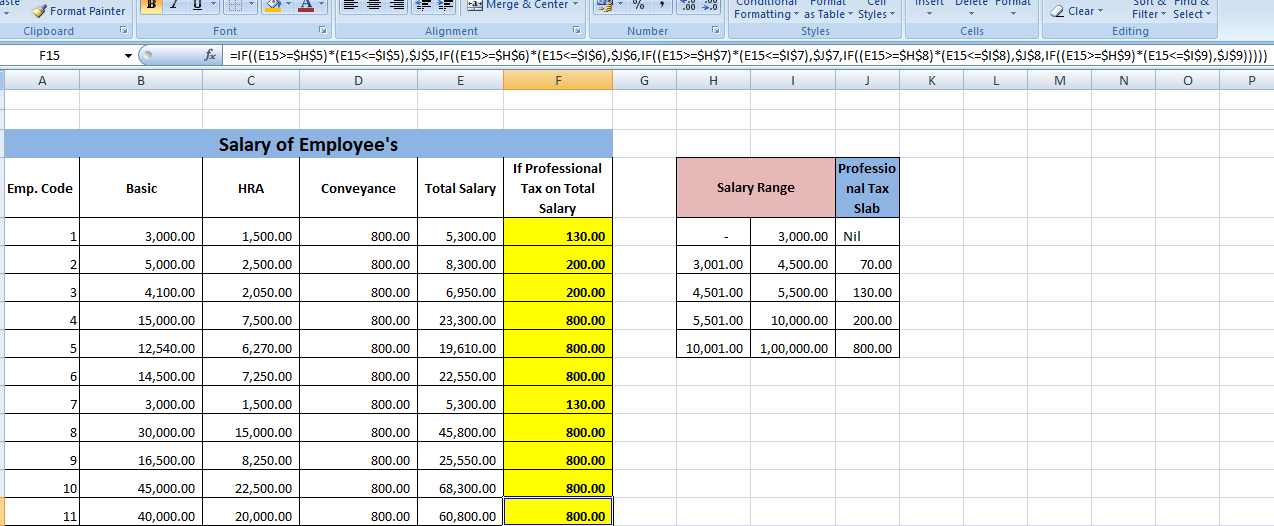
calculation of professional tax

Normally professional tax in not applicable all over the country but there are some state where the government take professional tax  Kar...